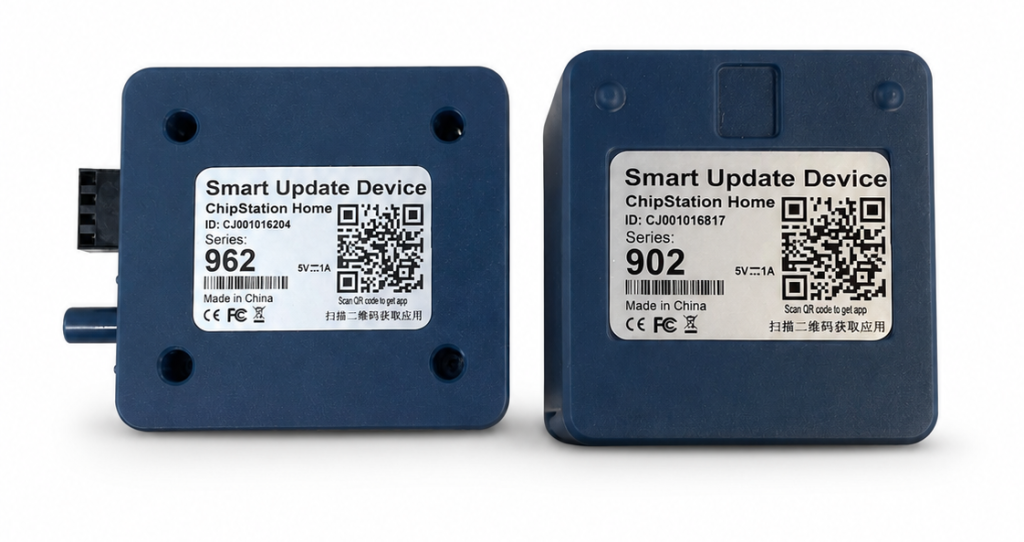
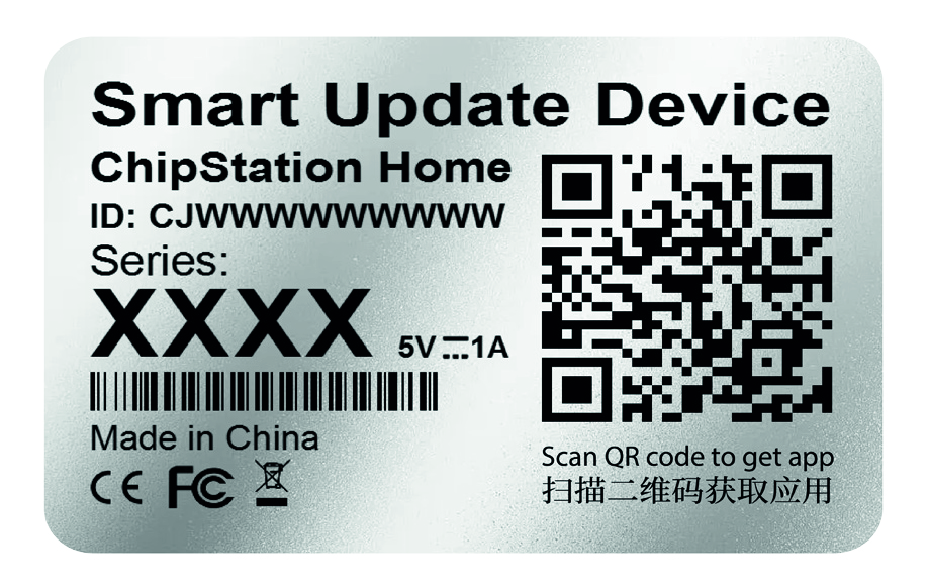
Scan the QR code displayed on the label using your mobile phone.
Download the ChipStation Home app from the App Store or Google Play.
CONNECT THE DEVICE TO THE APPLICATION
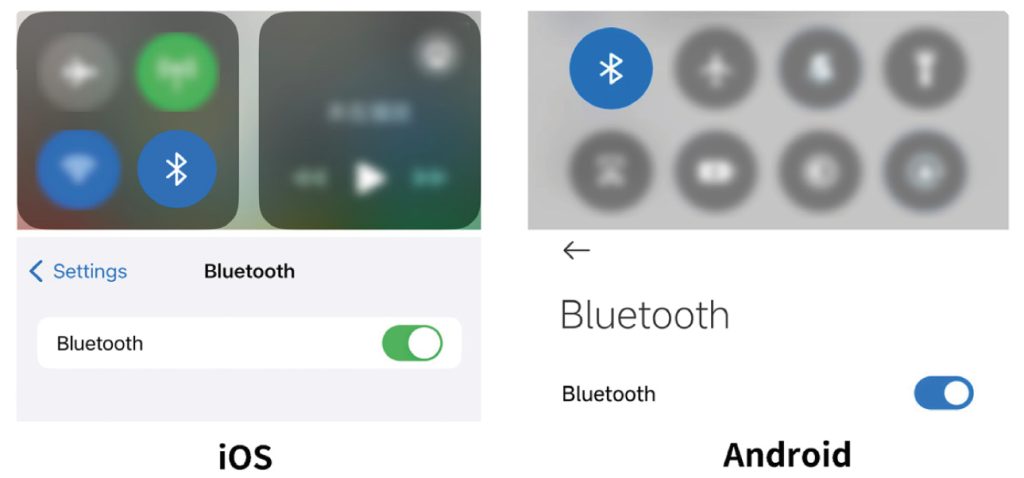
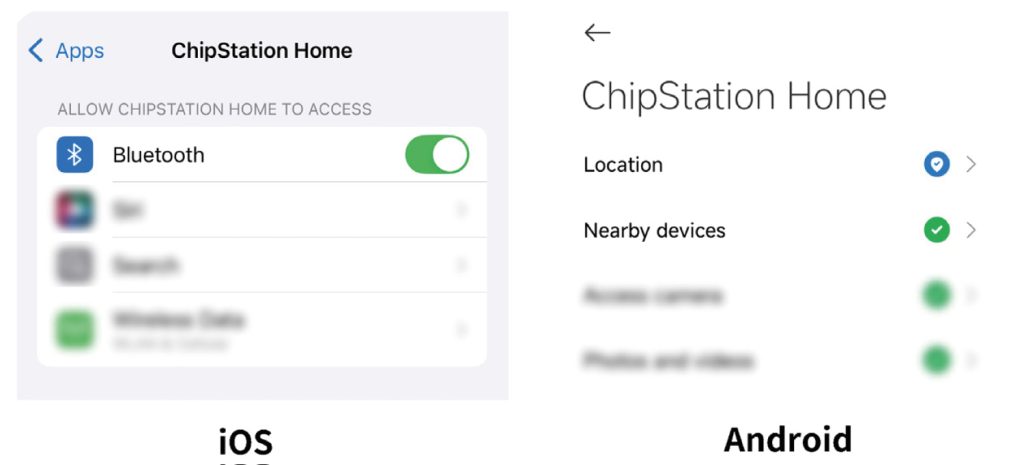
Allow all permissions for the app. Please enable Bluetooth on your phone
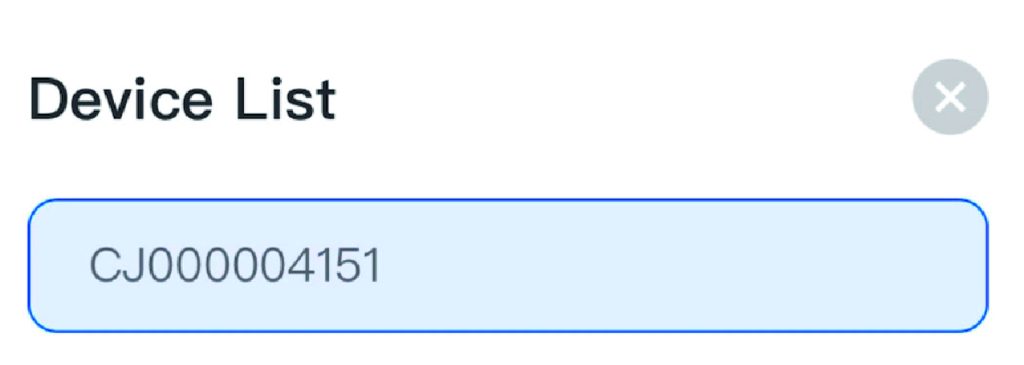
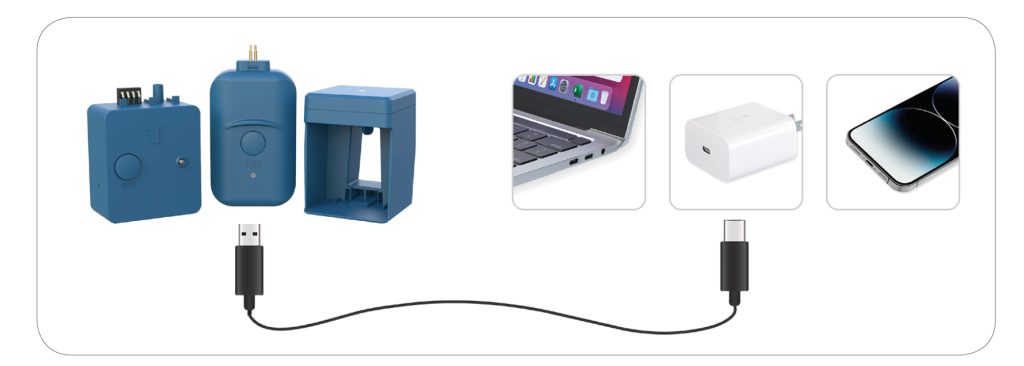
Connect the device to the power supply. Choose your preferred device (ID number: CJXXXXXXXXX).
We collect location data and the device ID solely to understand who uses the content and how, in order to improve our interactions with you.
HOW TO POSITION THE DEVICE
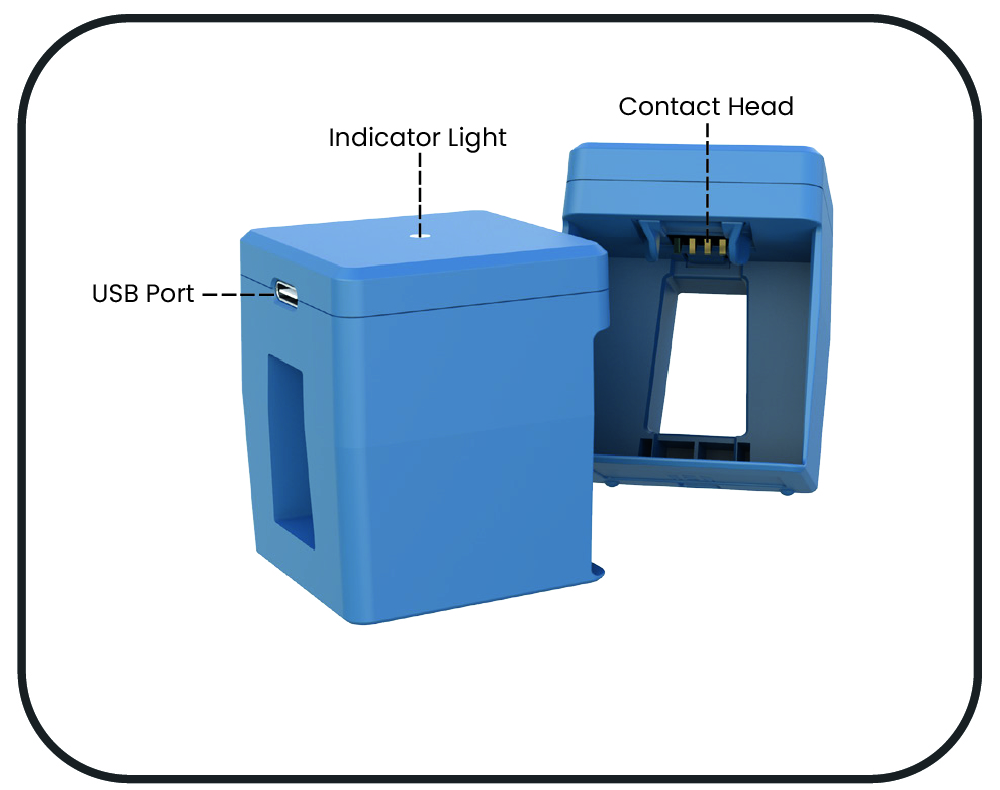
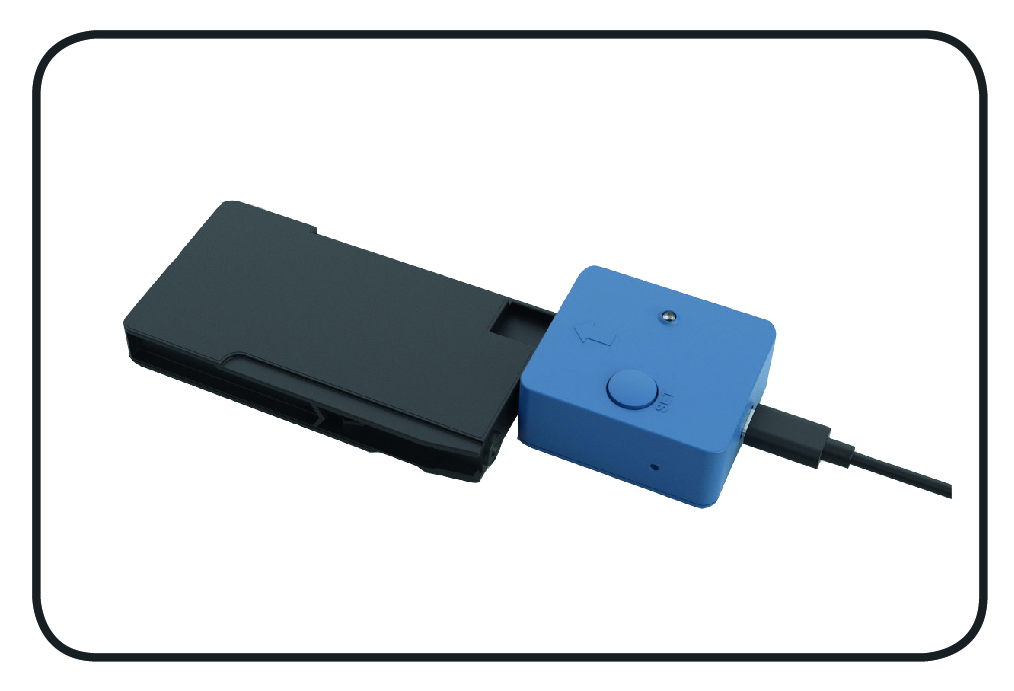
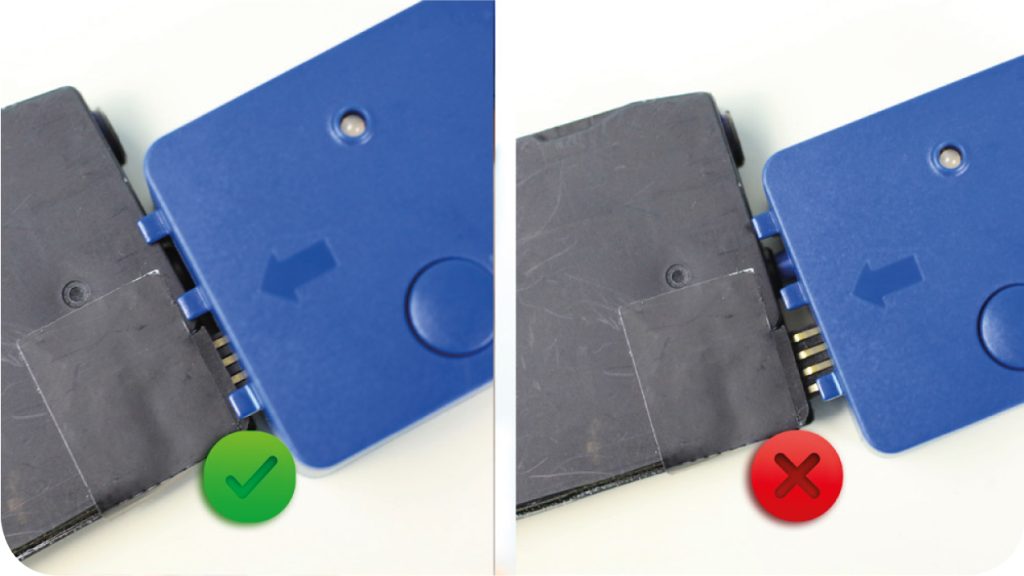
If you are using an Inkjet 902XL / 910XL series device, make sure the device is securely attached to the cartridge and does not come loose.
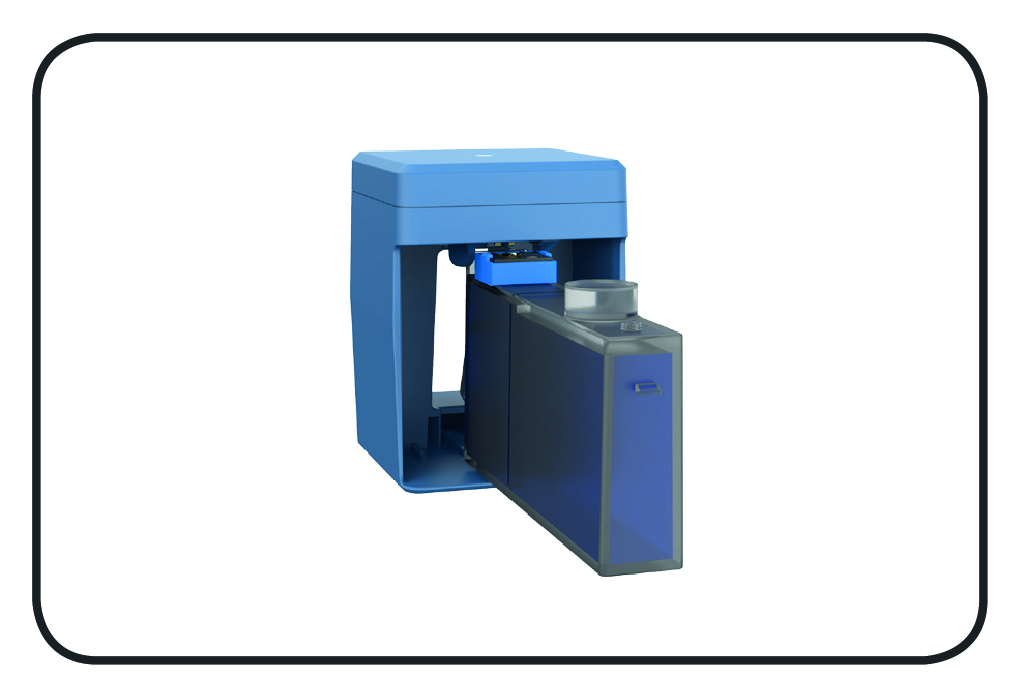
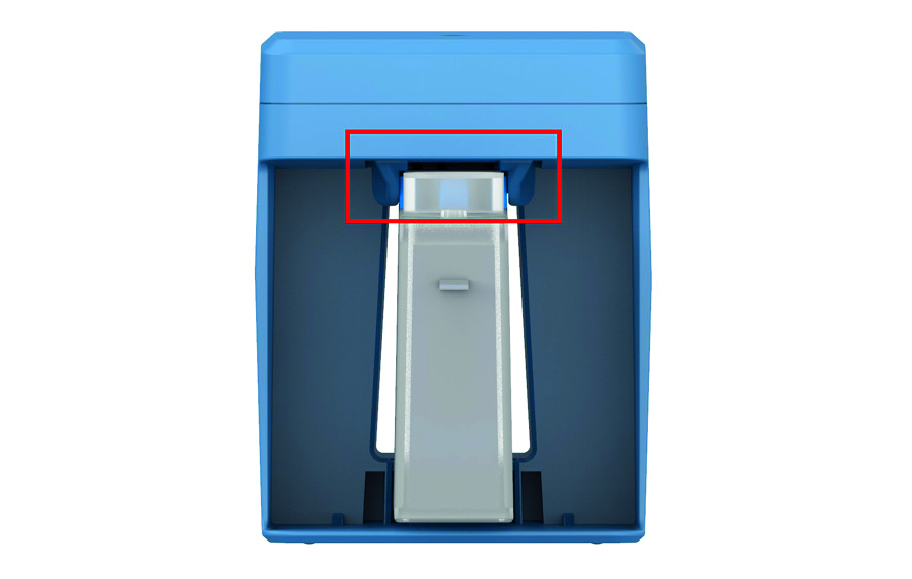
If you are using an HP 952XL / 962XL series device, make sure the cartridge is properly aligned with the slot located in the center of the device compartment.
UPDATE THE CHIP
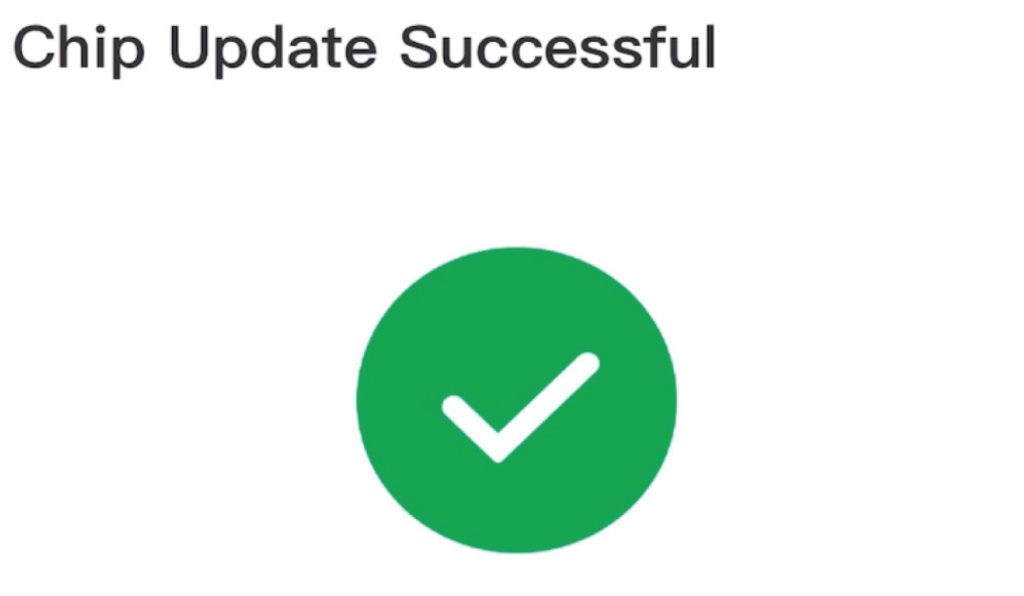
Follow the instructions in the app to update the cartridge chip.
UPDATE THE DEVICE
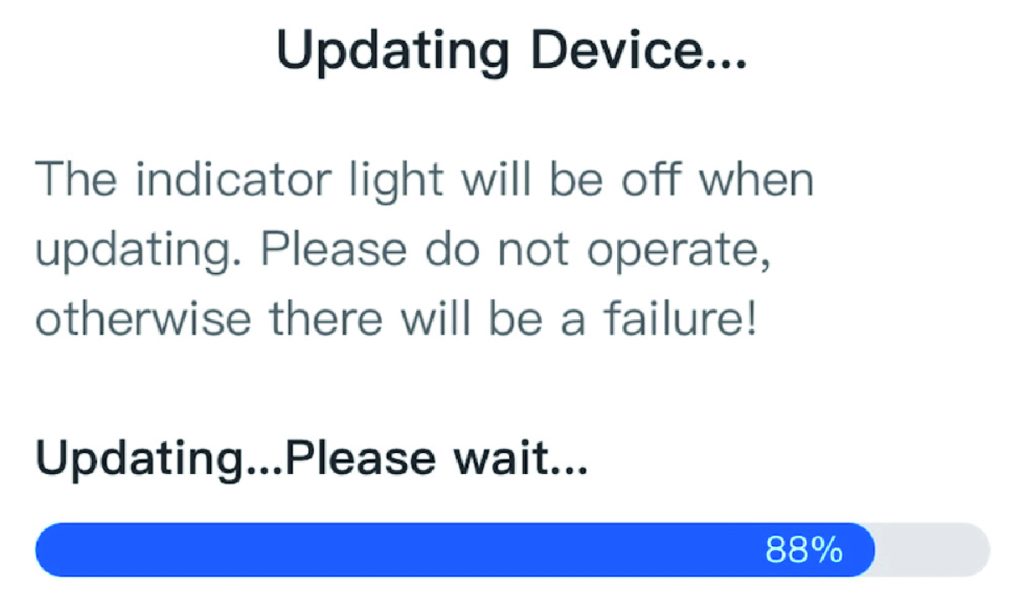
If a new firmware version is available, update the device to the latest version. Do not disconnect the power and keep a network connection active during the update.
This step only appears when there is new firmware for the device
COMMON QUESTIONS
DEVICE
UNABLE TO POWER UP THE DEVICE
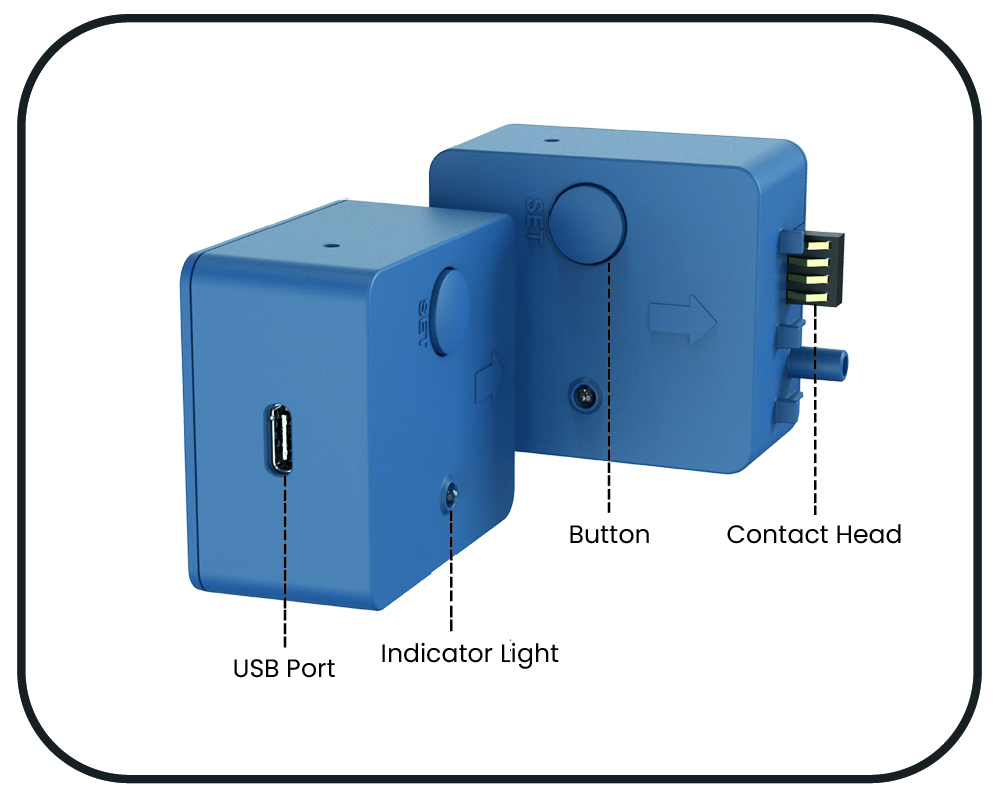
A charger, a PC USB port, or a mobile phone charging port with an output voltage of 5 V and an output current of 1 A can be used to charge the device.
Connection to a power bank is currently not supported.
If the device does not power on, please check the cable, the charger, the USB port on your PC, or the charging port of your mobile phone.
If the problem persists, please contact after-sales service.
Fail to Connect the Device to the App
1. Make sure the device is powered up
2. Make sure Bluetooth is turned on Please refer to “Operation Steps – Connect the Device to the Application” for details.
3. Allow all permissions for the app In the event that you deny the permissions, you can change them later in the system settings:
FAIL TO UPDATE THE DEVICE
Please do not cut off the power and ensure network connection during the device updating process. If the problem persists, please contact after-sales service.
HOW TO ENSURE THE CHIP AND THE DEVICE ARE PROPERLY CONNECTED
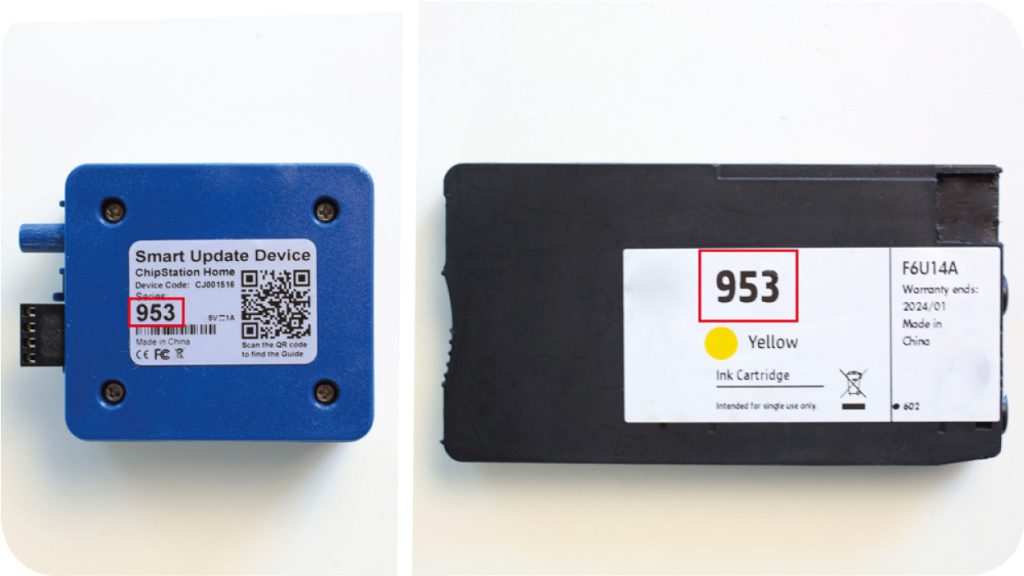
Why does the message “The device model does not match the chip model” appear?
Please make sure that the cartridge model matches the device model, especially if you are using cartridges of different models.
For illustration only. Actual model shall prevail.
Why does the message “Unable to Update Used Chip” appear?
Your cartridge has already been used. The device cannot update the chip of a used cartridge. Please perform the operation before installing the cartridge.
SPECIFICATION
Specification
Details
Input Voltage
5V
Input Current
1A
Shell Material
ABS
USB Cable
4-core black Type-C cable, 50 cm / 100 cm
Compatible Phone System
Android: requires Android 6.0 or later (since 09/2015) iOS: requires iOS 13.0 or later (since 09/2019)
APPLICABLE MODELS
Please refer to Chipjet Catalogue-ChipStation Home
Illustrations in this guide are for reference only. Actual product may vary due to product improvements.